A familiar Mac.
A fuller toolbox.
From the first folder you open to the last file you move.
Explore everything Shark brings to your everyday work.
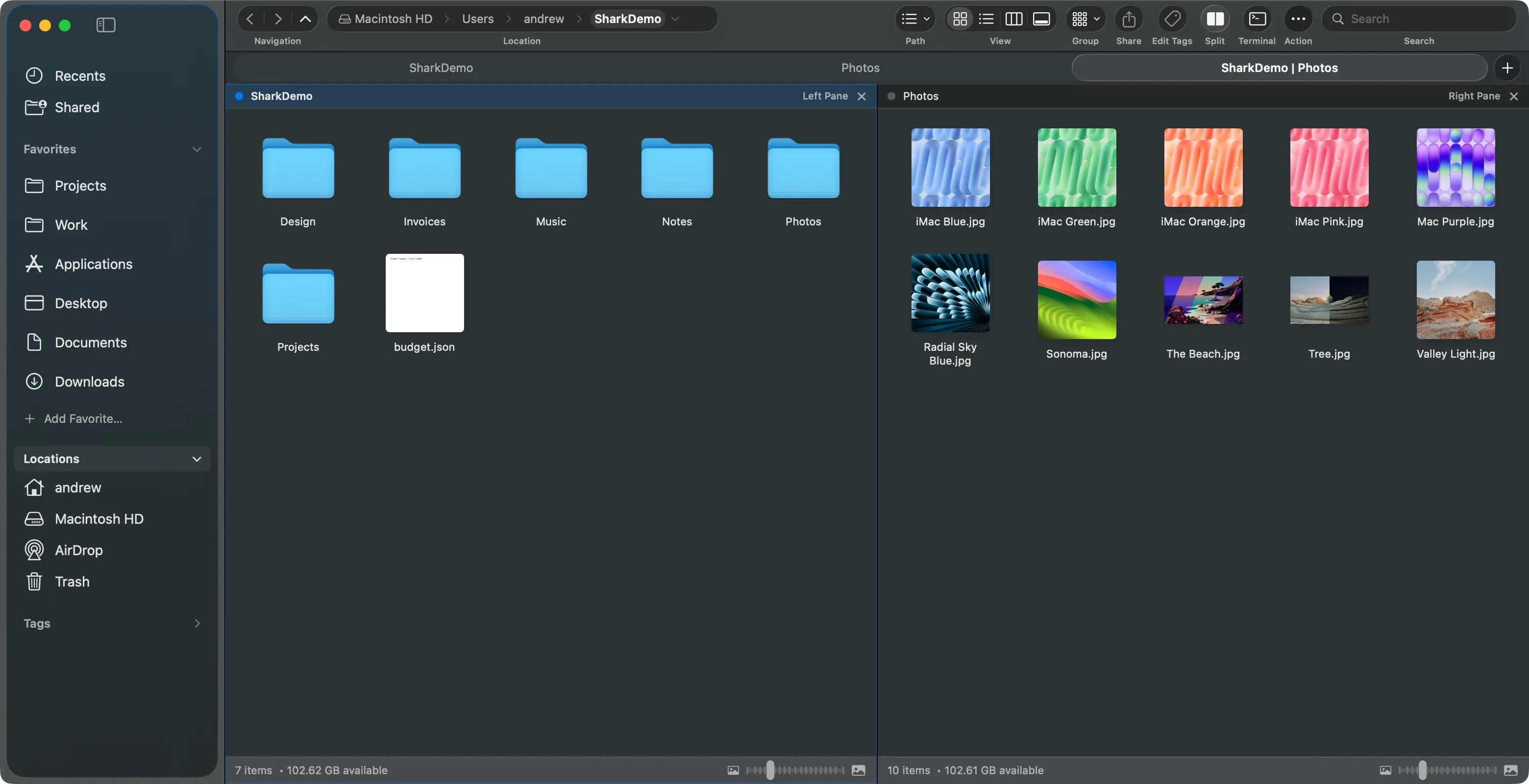
Tabs & workspace
Keep your folders together, and your next task close by.
- Folder tabs⌘T
- Open folders in separate tabs, duplicate a tab, and close one, the others, or everything to its right.
- Side-by-side panesF3
- Browse two locations in one tab. Each pane keeps its own folder and view, and file actions follow the active pane.
- Reorder, pin, lock & color
- Drag tabs into order, pin frequently used folders, lock a tab’s location, and choose a color to distinguish it.
- Reopen closed tabs⇧⌘T
- Bring back a closed tab or choose one from the Recently Closed menu.
- Saved tab groups
- Save a set of tabs as a named group. Restore it as your workspace or append it to your open tabs.
- Session restore
- Return to your saved tabs and pane layout when you reopen Shark.
- Multiple windows⌘N
- Open another Shark window. Windows share the current tabs and workspace.
Views & organization
See your files in the form that makes the most sense.
- Icon view⌘1
- Browse a grid of folders and file thumbnails with adjustable icon sizes and drag selection.
- List view⌘2
- Compare names, modified dates, sizes, kinds, and permissions in a sortable details table.
- Column view⌘3
- Follow a folder hierarchy across cascading columns, with arrow-key navigation, a preview, and file details at the end.
- Gallery view⌘4
- Give the selected file a large preview while keeping a thumbnail strip in reach.
- Adjustable icon zoom
- Make icons larger or smaller with Command-plus, Command-minus, or Command-scroll. Command-0 restores the default size.
- Sorting controls
- Sort by name, modified date, size, kind, or permissions, and switch between ascending and descending order.
- Live folder updates
- The file list updates as the contents of the folder change.
- Folder & selection status
- See item counts, filtered results, the selected items’ total size, and available disk space in the status bar.
Previews & Quick Look
Look inside a file before you decide what comes next.
- macOS Quick LookSpace
- Preview selected files using the Mac’s built-in Quick Look.
- Image & animated image previews
- Hover over an image to see it in a floating preview, including animated images.
- Text file previews
- Read up to 40 lines of a text file on hover, with support for UTF-8, UTF-16, and Latin-1 text.
- Document thumbnails
- See available document thumbnails, including PDF, Office, iWork, and RTF files.
- Video & audio playback
- Play media in the hover preview with playback and seek controls. Move the pointer into the preview to use them.
- Previews on your terms
- Adjust the hover delay, require holding Shift, choose media autoplay, or switch hover previews off in Settings.
Everyday file operations
The familiar essentials, with room for the bigger jobs.
- New folders & files
- Create a folder or a new file directly in the location you are browsing. Command-Shift-N creates a folder.
- Cut, copy & paste
- Use Command-X, Command-C, and Command-V to move or copy files between folders. Cut items are dimmed so you can see what is ready to move.
- Drag & drop
- Move files between panes or into folders. Hold Option while dragging to copy instead.
- Inline renameF2
- Change a file or folder name in place.
- Batch rename with a preview
- Find and replace text, add a prefix or suffix, or apply sequential numbering to a selection. Review the new names before applying them.
- Duplicate files
- Create another copy of selected items in the same folder.
- ZIP compression
- Create a ZIP archive from the selected files and folders.
- Move to Trash⌘⌫
- Send selected items to the macOS Trash.
- Undo & redo
- Undo and redo supported move, copy, rename, and Trash operations with Command-Z and Command-Shift-Z.
- Copy file & folder paths
- Copy a full, relative, or quoted path from the item menu, or copy the active tab’s folder path.
- Show in Finder
- Reveal selected items or a sidebar favorite in Finder whenever you want to switch to the system file browser.
Terminal & inspection
Work with your files, and see what is behind them.
- Built-in terminalF4
- Open a real interactive terminal beneath your files, with shell input and terminal output in the same window.
- Folder-aware terminal
- The embedded terminal follows the active folder, keeping shell work and file browsing in context.
- Open in Terminal
- Open the chosen folder in macOS Terminal, or choose Open in Embedded Terminal to work inside Shark.
- File inspector⌥⌘I
- Inspect the selected item’s location, size, dates, kind, and owner, group, and POSIX permissions.
- Image dimensions
- Check the pixel dimensions of supported images in the inspector.
- On-demand folder sizes
- Calculate the size of an individual folder from its context menu, or calculate all folder sizes using the command palette.
- SHA-256 checksums
- Calculate a file’s SHA-256 checksum on demand and copy the result.
Mouse & trackpad
Useful shortcuts wherever your pointer happens to be.
- Folder background actions
- Click empty space to clear the selection, drag a selection rectangle in icon view, or double-click empty space to go up one level.
- Open & act on items
- Double-click to open a file or folder, and right-click for item actions. Right-click the folder background for creation, paste, reload, terminal, hidden-file, and path actions.
- Middle-click navigation
- Middle-click a folder, sidebar place, or path segment to open it in a new tab. Middle-click a tab to close it.
- Tab gestures
- Click to switch, double-click to pin or unpin, drag to reorder, and right-click for tab actions. Right-click the plus button for Tab Groups.
- Scroll through tabs
- Scroll the wheel over the tab strip: down selects the next tab, up selects the previous one.
- Path bar shortcuts
- Command-click an ancestor path segment to open it in a new tab, or click its arrow to browse subfolders.
- Optional gestures & in-app help
- Switch optional background, tab, wheel, and side-button actions on or off in Settings › Mouse. Help › Shark Help lists the bindings by pointer location.
Mac appearance & preferences
A native place for your files, with the choices left to you.
- Native Mac materials
- Liquid Glass chrome on macOS 26, with system material fallbacks on macOS 14 and 15. Translucency can be turned off in Settings.
- Light & dark appearance
- The app follows your Mac’s appearance and uses native controls and system colors.
- Accessible controls & motion
- Labeled controls, keyboard navigation, and support for Reduce Motion, Reduce Transparency, and increased contrast.
- macOS folder access
- Grant access to protected folders when macOS asks. When privacy settings block a location, Shark offers guidance and a route to the relevant settings.
- Privacy & diagnostics
- Anonymous usage statistics and crash reporting are on by default and can be independently turned off in Settings › Privacy. File names, folder paths, and terminal commands are never collected.
Something you’d like to see next? Share a feature idea
Put your tools to work.
A free, native file manager for your Mac.